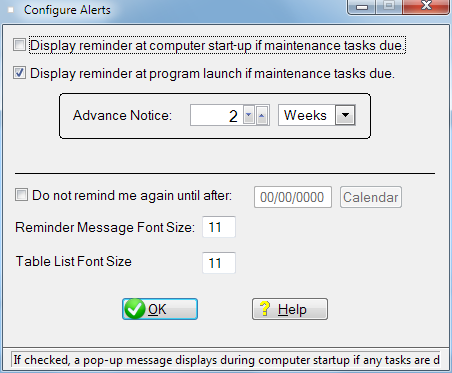
Configure Automatic Reminders
Check boxes you can use:
Display reminder at start-up: Check this box and the program will pop-up the small Maintenance Alert box when the computer starts up ONLY if there are scheduled tasks due (or overdue).
By the way, checking for tasks due at computer startup does not delay the startup time of the computer. FleetVIP has special code written in the program so as not to effect the computer startup time. So using this check box will not delay your computer startup time.
Display reminder at program launch: Check this box and the Maintenance Alert box pops-up whenever you start the FleetVIP program if any tasks are due.
If neither of these two boxes are checked, then no automatic reminders will be displayed (unless you use Scheduled Tasks in the Windows Control Panel mentioned in the tech note below).
Don't remind me: Use this to temporarily turn off automatic reminders. This is only available if you have checked one of the other boxes mentioned above. Otherwise, it is grayed out.
Reminder Message Font Size: You can adjust the font size used in reminder message boxes and all other message boxes. A number between 8 and 12 works best.
Table List Font Size: You can adjust the font size used in resizeable scrolling lists. This also adjusts the font size for Notes and Comments fields. A number between 8 and 12 works best.
Advance Notice: This controls how much advance notice to give on tasks that are due for automatic reminders and for the Scheduled Maintenance scrollable list and the Maintenance Schedule report.
Related topic: Automatic Reminders
Technical Note: Using the Windows task scheduler, you can schedule FleetVIP to check for scheduled tasks that are due at anytime you want in addition to (or instead of) checking at computer startup. Here's how:
1) Open the Windows Control Panel and select Scheduled Tasks. (It may be in the Performance and Maintenance category depending on how your machine displays the Control Panel.)
2)Then right click, select New/Scheduled Task. Name it what you want.
3)Open it and place the command
"C:\Program Files\FleetVIP\autovip.exe" /remind
in the Run area. The double quotes are required as is the /remind parameter. Then press the F1 key for Windows Help if you need to know more about scheduled tasks. If you changed the default installation path when installing FleetVIP, modify the command to use the correct path.